Reviewing & Exporting Notes
Learn how to finalize your notes after recording: assign patients, switch templates, and export to your Practice Management Software.
1. How to Assign Patients
If your patient management system is connected and synced, you can easily link a recording to an existing patient profile.
- Click on Assign Patient at the top of the note page.
- Type their name in the search box to find and select them.
- For New Patients: If they aren't in the system yet, click New Patient. Enter their name (and optionally phone number/email), then click Create & Assign.

2. Generating Other Note Types
You can change the format of your note by switching templates. This is useful if you need a different style (e.g., SOAP vs. Referral Letter) for the same session.
- Locate the Note Template dropdown menu above the note content.
- Select the desired template from the list.
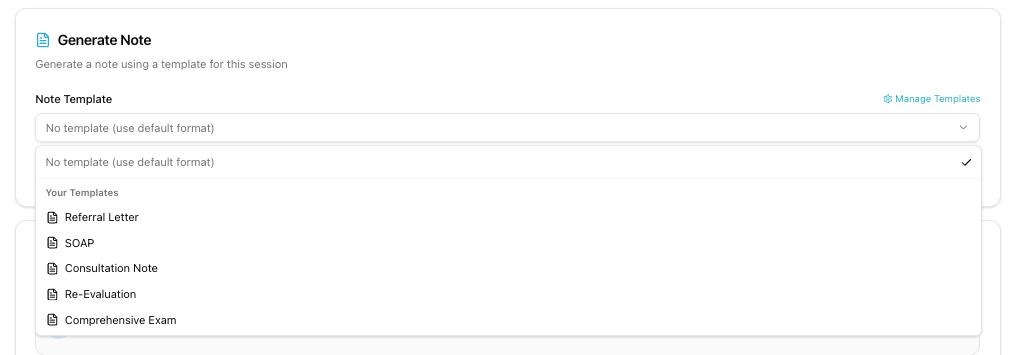
- Give it a few seconds, scroll up, and a new tab will appear displaying your newly generated note.

3. How to Export to Patient Management Software
There are three ways to transfer your completed note to your PMS:
- Copy Text: Click the Copy button. The note content is copied to your clipboard, ready to be pasted directly into your PMS.
- Export as PDF or DOCX: Click the Download button and select your preferred file format.
Note: The downloaded file will include your custom header, footer, and signature if configured. Learn how to setup letterhead here
4. Assigning Provider & Marking Complete
Assigning a Provider
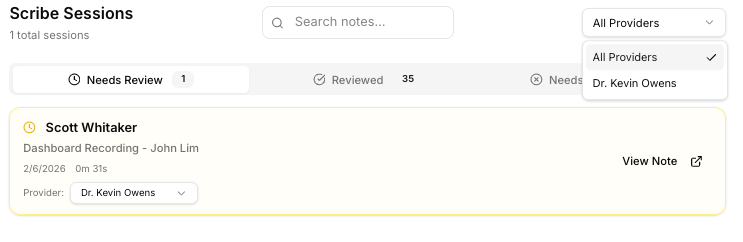
By default, the note is assigned to the account currently logged in. You can change this by toggling the Provider dropdown if you are managing notes for multiple doctors.
Marking as Reviewed
Once you have reviewed the note and ensured its accuracy:
- Click the Reviewed checkbox in the header.
- The session will move from the "Needs Review" tab to the Reviewed tab in your dashboard, helping you keep track of completed work.
Filtering by Provider
In the main dashboard view, you can use the Provider Filter to show only the consults and sessions relevant to a specific provider.